
Appearance
The workspace
Everything you save lives in one place on your disk. This page is the tour of how it's organised on screen.
The activity rail
The narrow strip down the left switches the sidebar between four modes:
| Requests | Your collection tree, with a Collection · History sub-tab. |
| Testing | Suites and load runs. |
| Proxy | The capture proxy and its captures. |
| Inbound | A request bin — a public URL that captures requests sent to you. |
Environments and Settings sit below the four. It is a deliberately small number of modes — the app is one window, not a tab farm.
New here? Take a tour on the empty-workspace screen (or Help → Show Guided Tour) walks the rail one stop at a time, saying what each mode is for. It only points — it never navigates or changes anything — so it is safe to run at any time, and Esc ends it.
Collections and folders
Saved requests live in a tree of collections and folders. Drag a request to move or reorder it; a new collection or folder is named inline as you make it.
Create a request
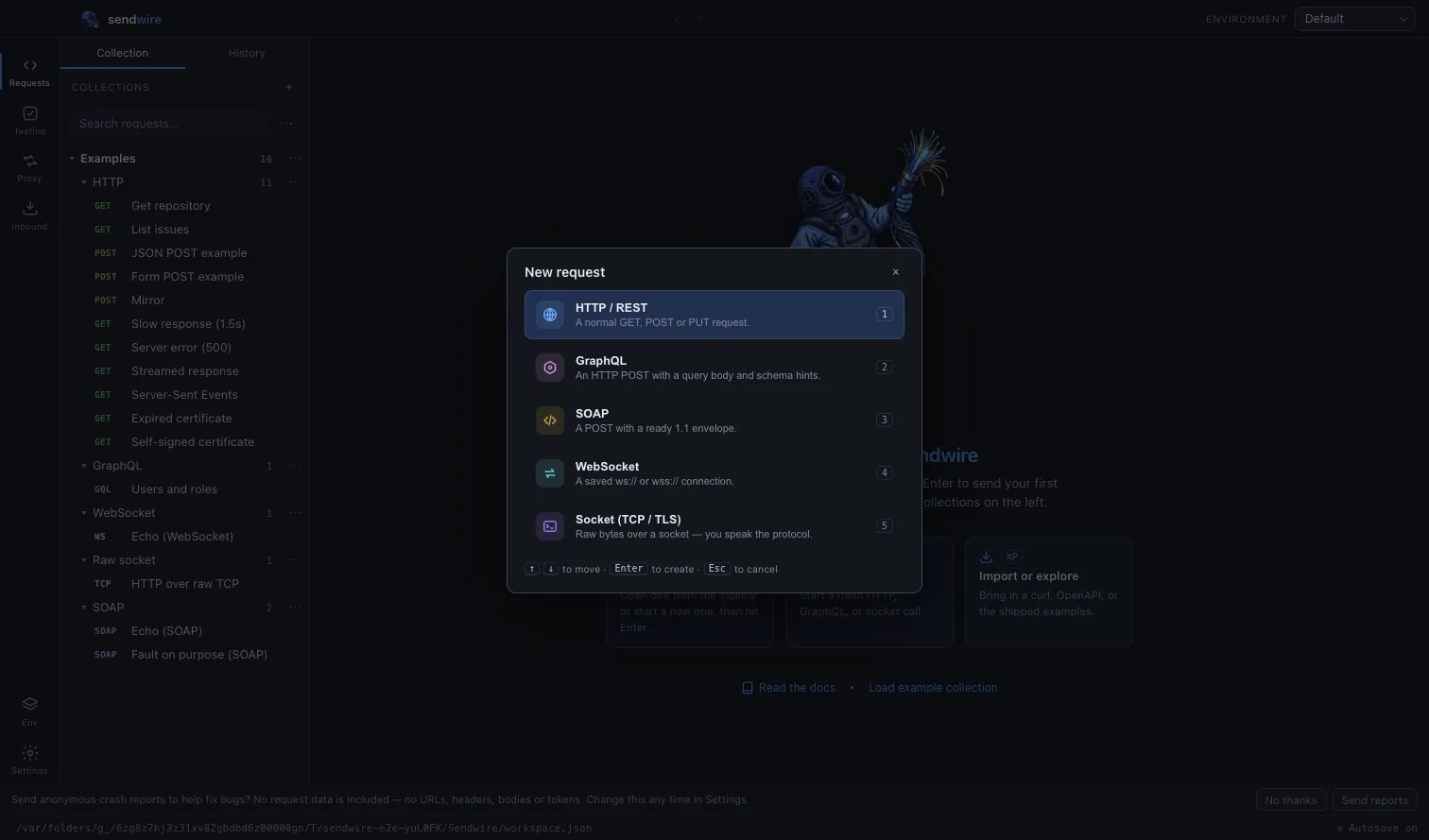
New request (⌘N) opens a picker: HTTP, GraphQL, SOAP, WebSocket or a raw socket. The type is chosen once, at creation — a GraphQL request is a GraphQL request, and the editor is shaped for it from the start rather than reconfigured later. A small badge in the editor shows which type you're looking at.
Inherited settings
Auth, headers and scripts set on a collection or folder apply to every request inside it. Define a base URL, a bearer token, or a setup script once on the folder and every request below inherits it — override on the request when one needs to differ.
History
Every request you send is recorded under History, whether or not it was saved. Open one and it comes back exactly as it went — but as a read-only past version, badged as such, with a note of when it was sent and which version of that request it was.
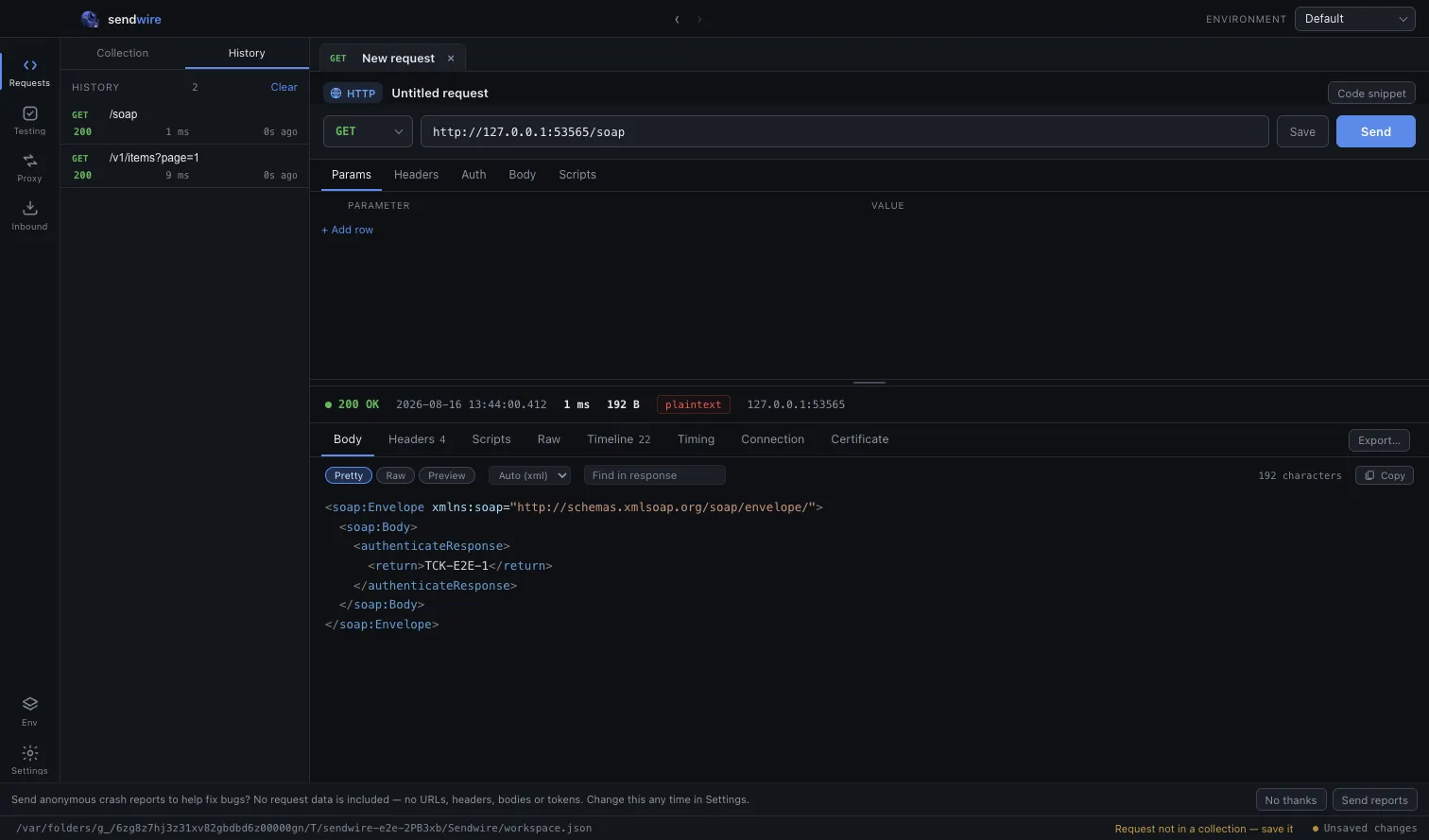
To keep an old version, use Save as…: a browser of your collections where you type a name and pick a folder to file a new request, or click an existing request to save over it. If the name you choose already exists in that folder, it asks before replacing it — a past version can never quietly overwrite the live request.
Find anything
⌘P opens the command palette — type to jump to any request by name, or run an action, without reaching for the tree.
When a request won't connect
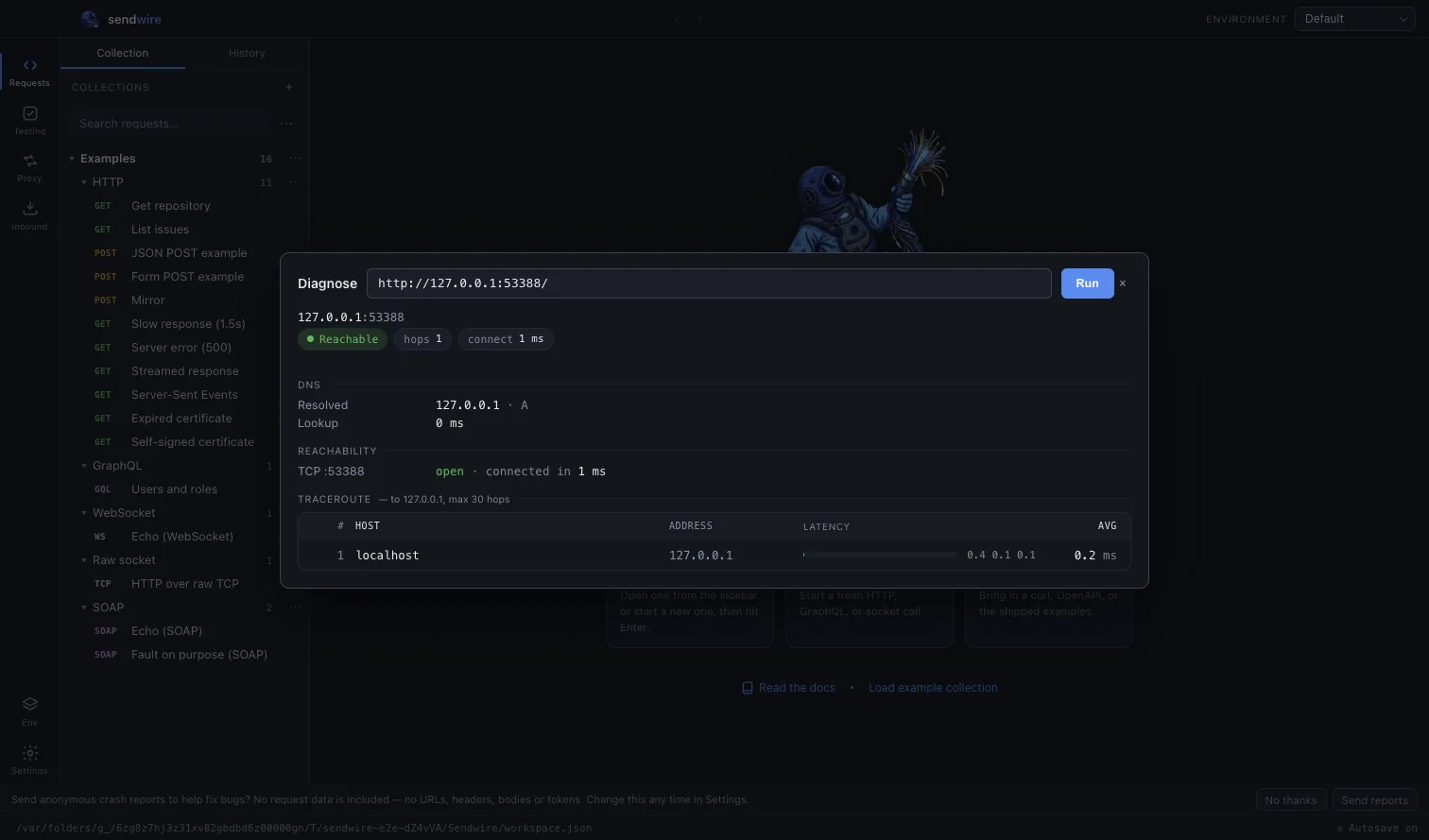
File → Utilities → Diagnose Host answers the question the response pane can't when nothing comes back at all: is it DNS, is the host reachable, where do the packets stop? It runs the DNS lookup, a reachability check and a streaming traceroute against the host, so "it just hangs" turns into a place on the route.
Git Sync
The workspace is a file, so it can live in version control. File → Git Sync… configures a repository (or clones an existing one), then commits, pulls and pushes your collections from inside the app — history and review for your requests, and a shared source of truth for a team, without a Sendwire account or cloud in the middle. It is your git remote, on your terms.
Where your data lives
In a single JSON file on your disk, at a path the app shows in the bottom-left of the window (and sendwire where on the command line). It is saved as you type. There is no account and no cloud — see Privacy and data for the full account of what does and doesn't leave your machine. To start over, Settings → Reset workspace clears it back to empty behind a typed confirm.