
Appearance
Capture proxy
The fastest way to build a request is to not build it. Point a browser, an app, or a phone at Sendwire's built-in proxy, use the thing normally, and every request it makes appears in a list — ready to open, replay, save or export.
It is the Proxy mode in the left rail. Most REST clients don't have this; the ones that do are usually a separate tool (Charles, Proxyman, Fiddler). Its receiving-side counterpart is Inbound, which captures requests sent to a public URL rather than ones passing through your machine.
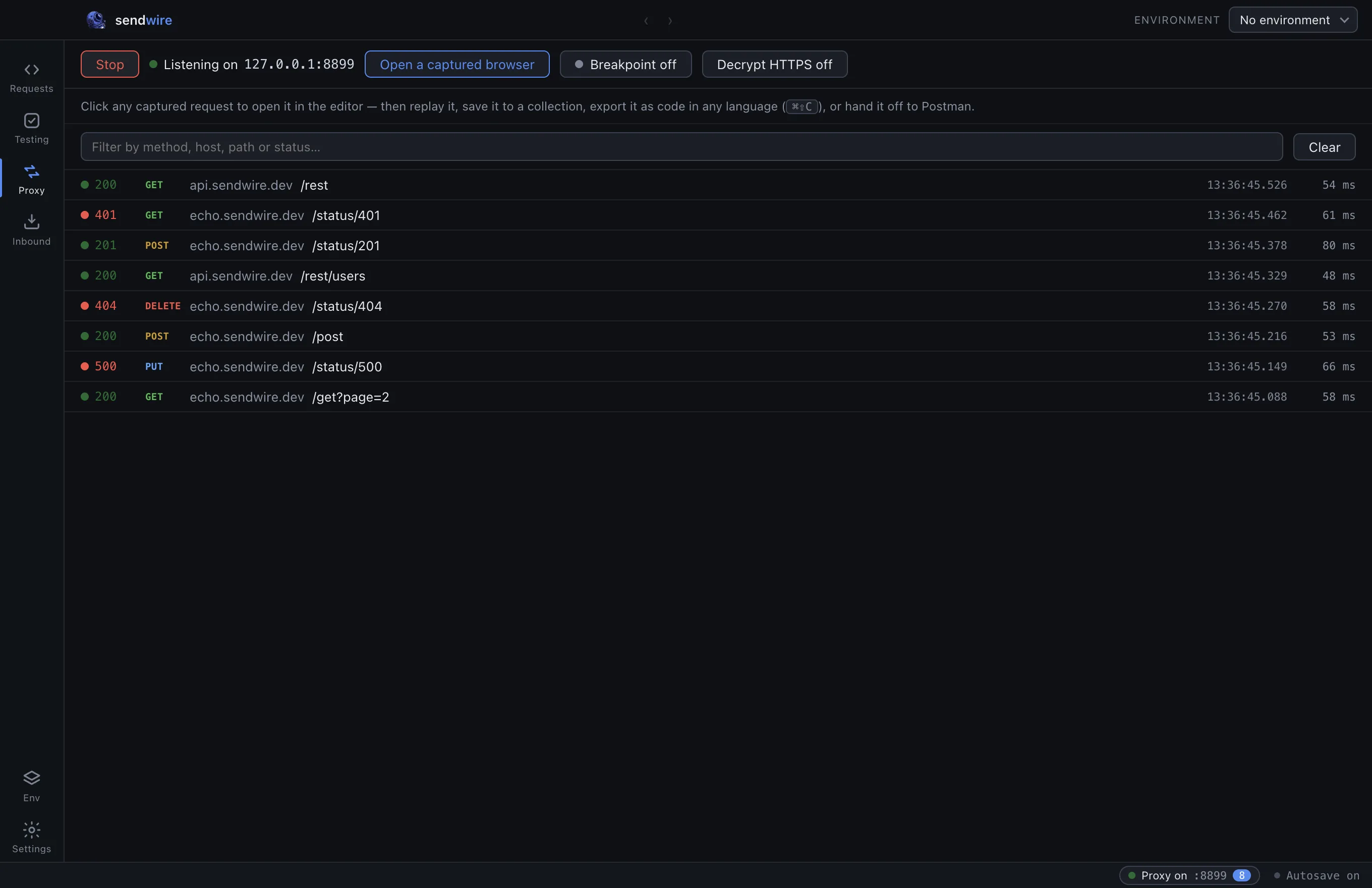
Start capturing
Open Proxy and press Start. The proxy binds to a local port (shown next to the button) and the status bar keeps a live "Proxy on :port" indicator wherever you navigate, so it is never running invisibly.
Anything routed through that port is captured as it passes — method, URL, headers, body, and the response — and added to the list live.
Route something through it
The in-app Setup guide has the exact steps for your OS, plus a few ways in:
| Open a captured browser | Launches Chrome, Edge, Brave or Chromium in a throwaway profile already wired to the proxy. No system settings are touched and there is nothing to undo — close it and it's gone. This is the one to reach for. |
| Terminal | Copy-paste http_proxy/https_proxy exports, and a curl -x example against our own echo, to confirm it works. |
| A phone | iOS and Android tabs walk through the Wi-Fi proxy settings so a device on the same network captures through your computer — see phone and LAN below. |
| System proxy | Point your OS or a specific app at the port by hand. |
Turn a capture into a request
Click any capture. It opens in the editor exactly as it was sent, with the recorded response beside it. From there it is an ordinary request: replay it, edit it, save it to a collection, generate code from it, or export it.
That is the loop the proxy exists for — see what a real client sent, then make it yours.
Breakpoints
Hold a request in flight, change it, then let it go. Flip Breakpoint on and a matching request pauses at the proxy instead of passing straight through; the editor shows it held, you edit the method, URL, headers or body, and then Forward it with your changes — or Drop it so it never reaches its target. The same idea as Burp or Charles, without leaving the app.
HTTPS decryption
By default the proxy sees HTTPS as opaque bytes — it can log that a connection happened but not what was inside. Turn on Decrypt HTTPS and a local certificate authority, generated on your machine, decrypts TLS so bodies are captured in full and breakpoints work on HTTPS too.
It is off by default, and it is a real MITM.
Decryption only works for clients that trust the local CA. A captured browser trusts it automatically. For a phone or another app you install the CA yourself — the guide has the certificate and the steps. The key never leaves your machine, and turning decryption off puts things back.
Phones and the LAN
The proxy binds to loopback, so only the computer can reach it. To capture a phone, flip Share on the network: the proxy rebinds so a device on the same Wi-Fi can point its proxy settings at your computer's address. It is opt-in for the obvious reason — until you turn it on, nothing off your machine can use it.
To capture a phone's HTTPS you will also want decryption on and the CA installed on the phone; the Android and iOS tabs cover both.