
Appearance
HAR files
A HAR is a browser's own record of what it sent — export it from any browser's Network tab (right-click a request → Save all as HAR). It is the most honest account there is of what a working client really did, which makes it the best starting point when yours doesn't.
Sendwire opens one in a waterfall you can read, and turns any entry back into a request.
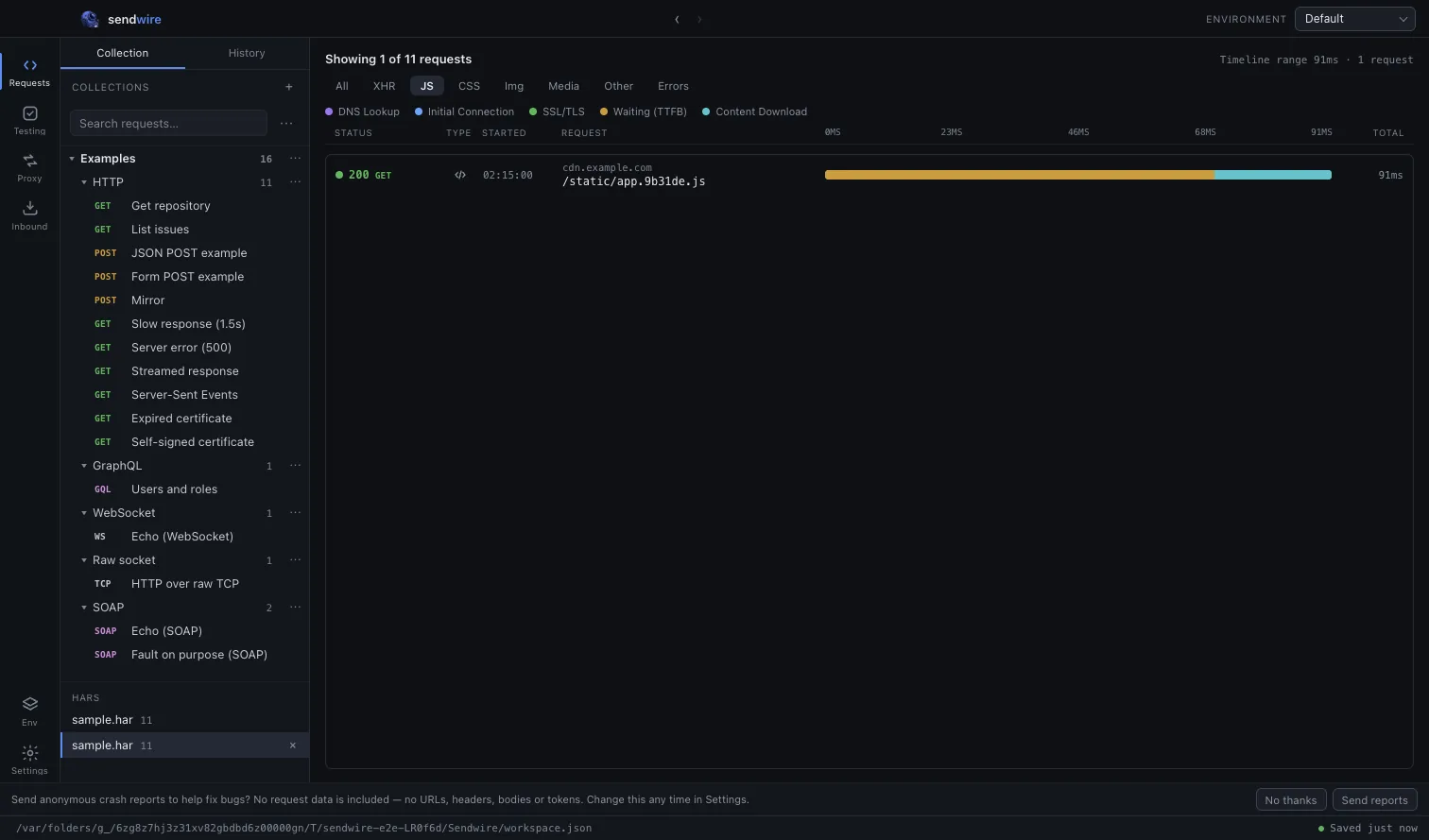
Open one
Browse a HAR… at the top of the sidebar (or File → Browse a HAR). Pick the .har file and it opens as its own view in the sidebar — not a collection, not a modal.
The waterfall
Every request is a row, drawn against a shared time axis, each bar segmented by phase — DNS, connect, TLS, waiting, download — in the same colours the timing view uses. The shape tells you where the time went across the whole page at a glance: a wall of connect time, one request blocking the rest, a slow tail.
| Type filters | Narrow to XHR/fetch, documents, scripts, images and the rest. |
| Text filter | Match on URL. |
| Phase legend | What each colour segment is. |
Open an entry as a request
Click any row and it opens in the editor with its recorded response attached — the same exchange view as a live request. Replay it against the real server, edit it, save it to a collection, or generate code. A breadcrumb keeps the way back to the HAR it came from.
They persist
A browsed HAR is copied into your workspace and kept across restarts — it is there next launch without re-importing. It also travels inside a Sendwire export when you export everything, so a HAR you were debugging goes with the collection.